
If you run a local business, one of the most valuable things you can do for your visibility online is set up your Google Business Profile correctly. This guide walks you through the entire process — from creating your profile to verifying it, optimizing it, and avoiding the mistakes that trip up most business owners.
A quick note on naming before we start: Google’s free business listing tool used to be called Google My Business. In 2021, Google retired that name and rebranded the product as Google Business Profile. The underlying tool is essentially the same — it’s just been renamed and, over time, integrated more directly into Google Search and Maps rather than requiring a separate app for everything. You’ll still see people (and older articles) use “Google My Business” or “GMB” out of habit, but in this guide we’ll use the current, correct term throughout.
By the end of this guide, you’ll know exactly how to create your profile, what information to enter at each step, how verification works, and how to optimize your listing so it accurately represents your business to the people searching for it.
1. What Is Google Business Profile?
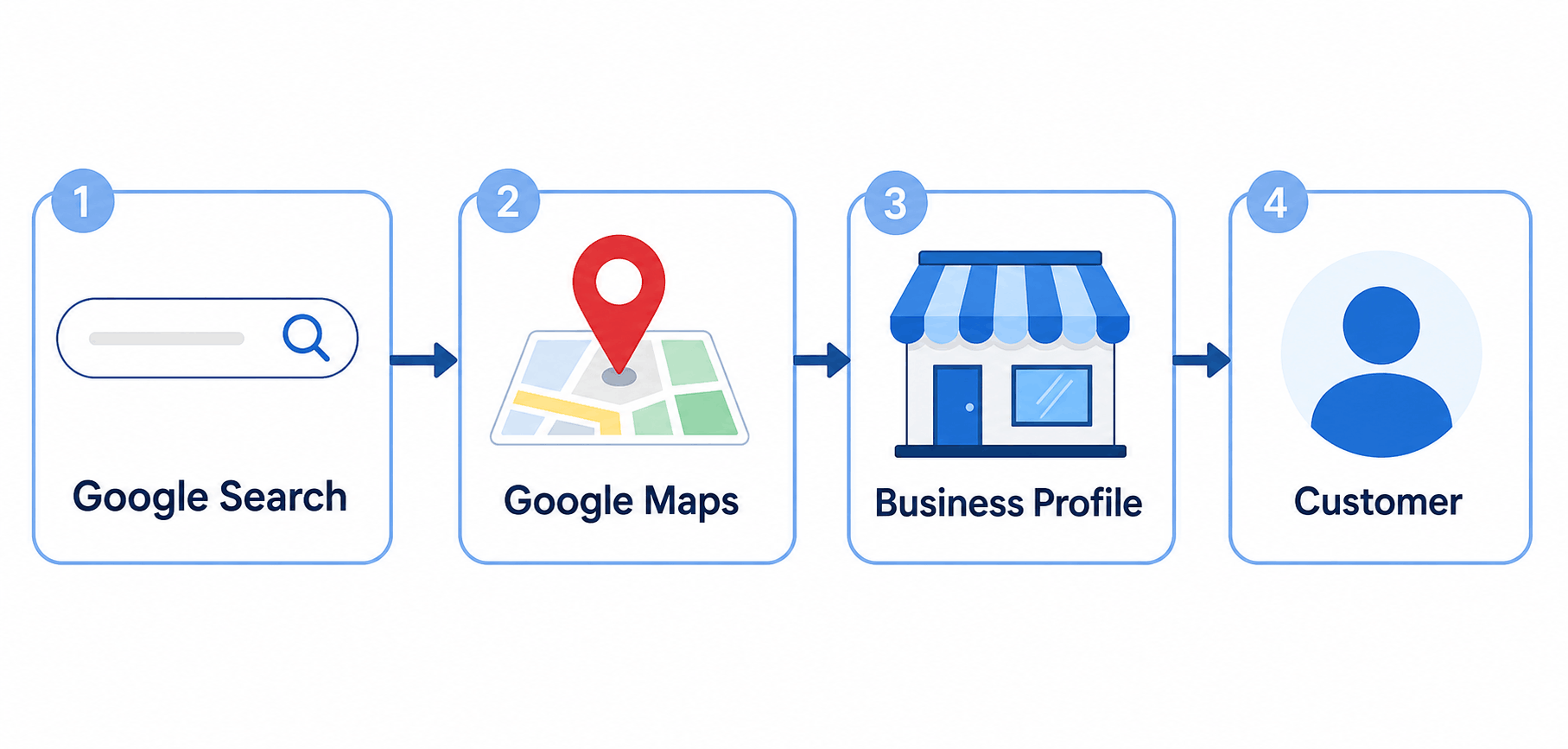
Google Business Profile is a free tool from Google that lets businesses manage how they appear across Google’s products — primarily Google Search, Google Maps, and local search results. When someone searches for a business like yours, or searches for your business by name, the information that shows up — your hours, address, phone number, photos, reviews, and description — comes from your Business Profile.
It matters most for local businesses, meaning any business where customers search with local intent: “plumber near me,” “dentist in Jaipur,” “best coffee shop downtown,” and so on. If your business serves a local or regional customer base, your Business Profile is often the first thing a potential customer sees about you — sometimes even before they visit your website.
A simple example: Imagine someone searches “dry cleaner near me” on their phone. Google Search shows a map with a handful of nearby businesses (this is often called the “local pack” or “map pack”). The person taps on one, which either opens more detail in Search or takes them into Google Maps, where they can see the business’s hours, read reviews, get directions, or call directly — all without ever visiting the business’s website. That entire experience is powered by the business’s Google Business Profile.
Pro Tip: Even businesses with a strong website still need a complete, accurate Business Profile — for many local searches, it’s shown before the website link.
2. Who Should Create a Google Business Profile?
Almost any small local business that interacts with local customers can benefit from a Business Profile, including:
- Local retail stores
- Restaurants and cafés
- Clinics and healthcare practices
- Salons and spas
- Service-area businesses (electricians, cleaners, movers)
- Professional services (accountants, consultants, lawyers)
- Digital and marketing agencies
- Repair businesses (appliance, auto, electronics)
- Home-service businesses (HVAC, plumbing, landscaping)
- Offices where clients or patients visit in person
Physical Location Businesses vs. Service-Area Businesses
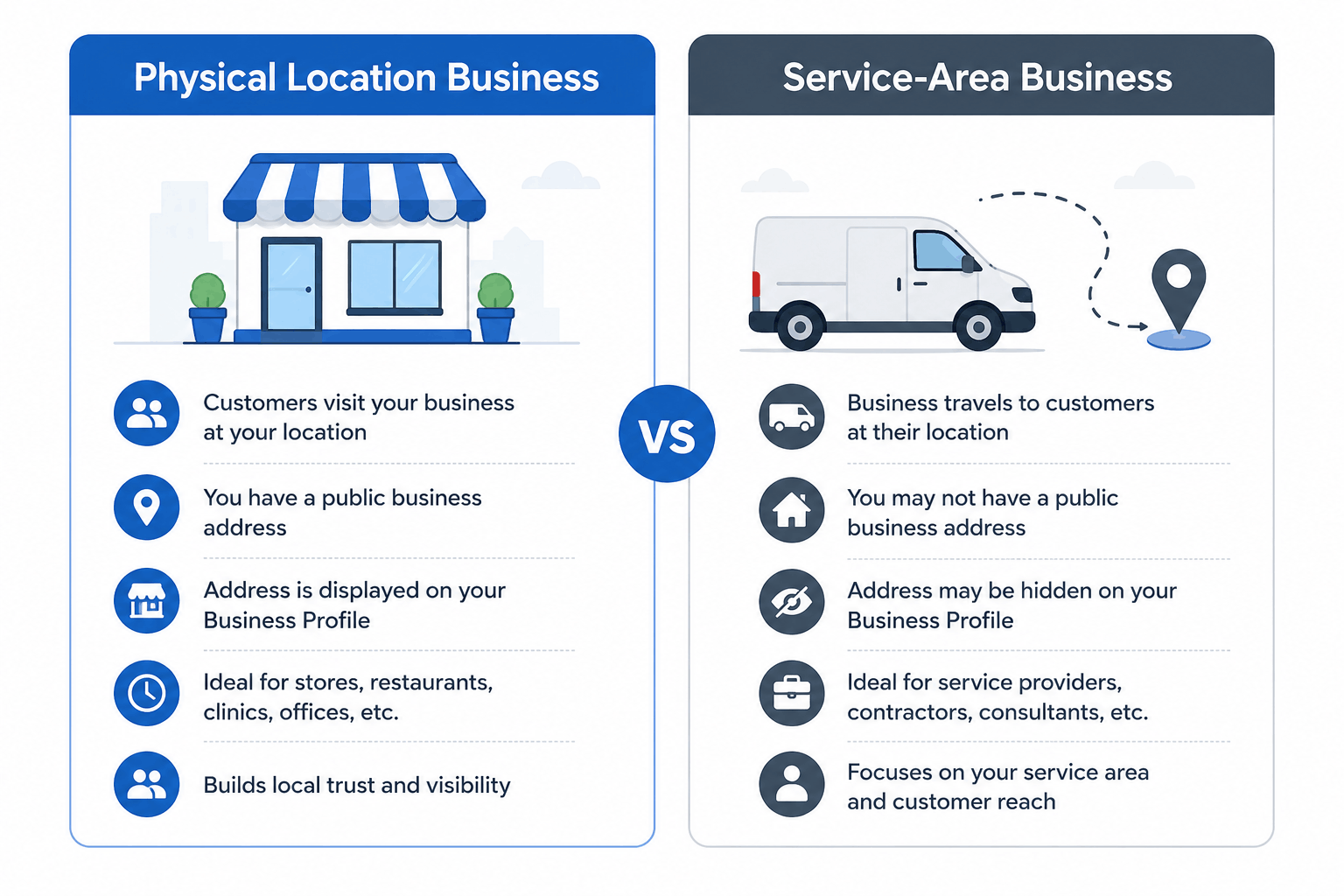
Google draws a distinction between two general setups:
- Businesses with a physical location customers can visit — a shop, restaurant, or office with a storefront or public-facing address.
- Service-area businesses (SABs) that travel to the customer instead of the customer visiting them — plumbers, electricians, mobile groomers, cleaning services, and similar businesses. (See our guide to local SEO for electricians for a real example of how a service-area business approaches local visibility.)
Which category you fall into affects how your address is displayed (or whether it’s shown publicly at all) and which setup options you’ll see during profile creation. Keep in mind that eligibility for a Business Profile, and for specific features within it, is ultimately determined by Google’s guidelines, which can vary by business type and location.
3. What You Need Before Starting
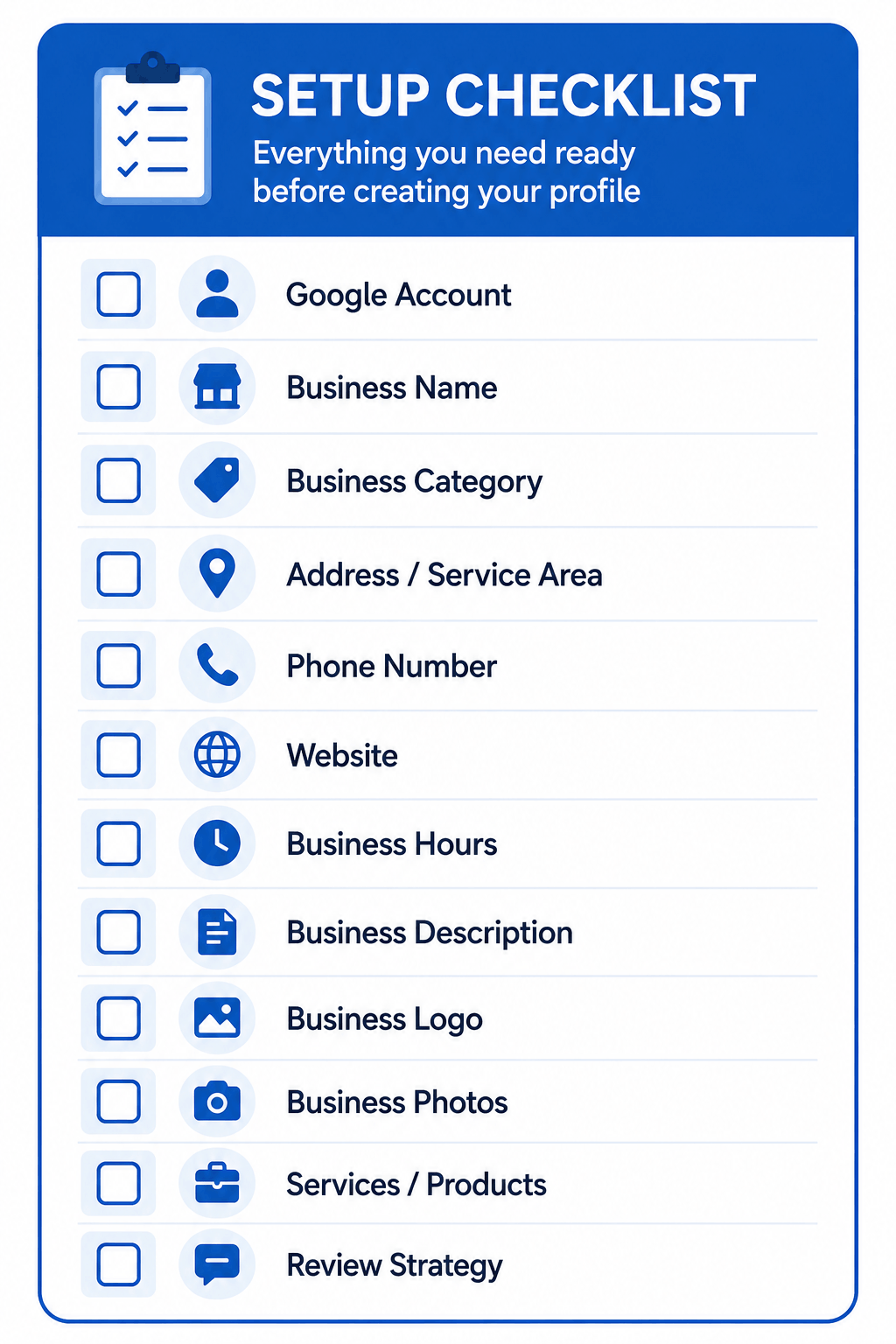
Gather this information before you begin — having it ready makes the setup process much faster and reduces the chance of entering something inconsistent that you’ll have to fix later.
Setup Checklist:
- [ ] A Google (Gmail) account, ideally one the business owner controls long-term
- [ ] Your exact, real-world business name
- [ ] The most accurate business category (and any relevant secondary categories)
- [ ] Your business address, or the areas you serve (for service-area businesses)
- [ ] A working business phone number
- [ ] Your website URL, if you have one
- [ ] Your regular business hours (and any seasonal/holiday hours)
- [ ] A short, accurate business description
- [ ] Your logo
- [ ] A handful of high-quality photos of your business
- [ ] A list of your core services or products
- [ ] Access to your business location, in case Google’s verification process requires it
Why accuracy matters here: Every piece of information you enter becomes part of your public listing. Inconsistent details (a phone number that doesn’t match your website, an address that’s slightly off, hours that are wrong) create a confusing experience for customers and can complicate verification. It’s worth spending ten minutes getting this list right before you open the sign-up page.
4. How to Create a Google Business Profile — Step by Step
This is the core walkthrough. Follow these steps in order.
Step 1 — Sign In to Your Google Account
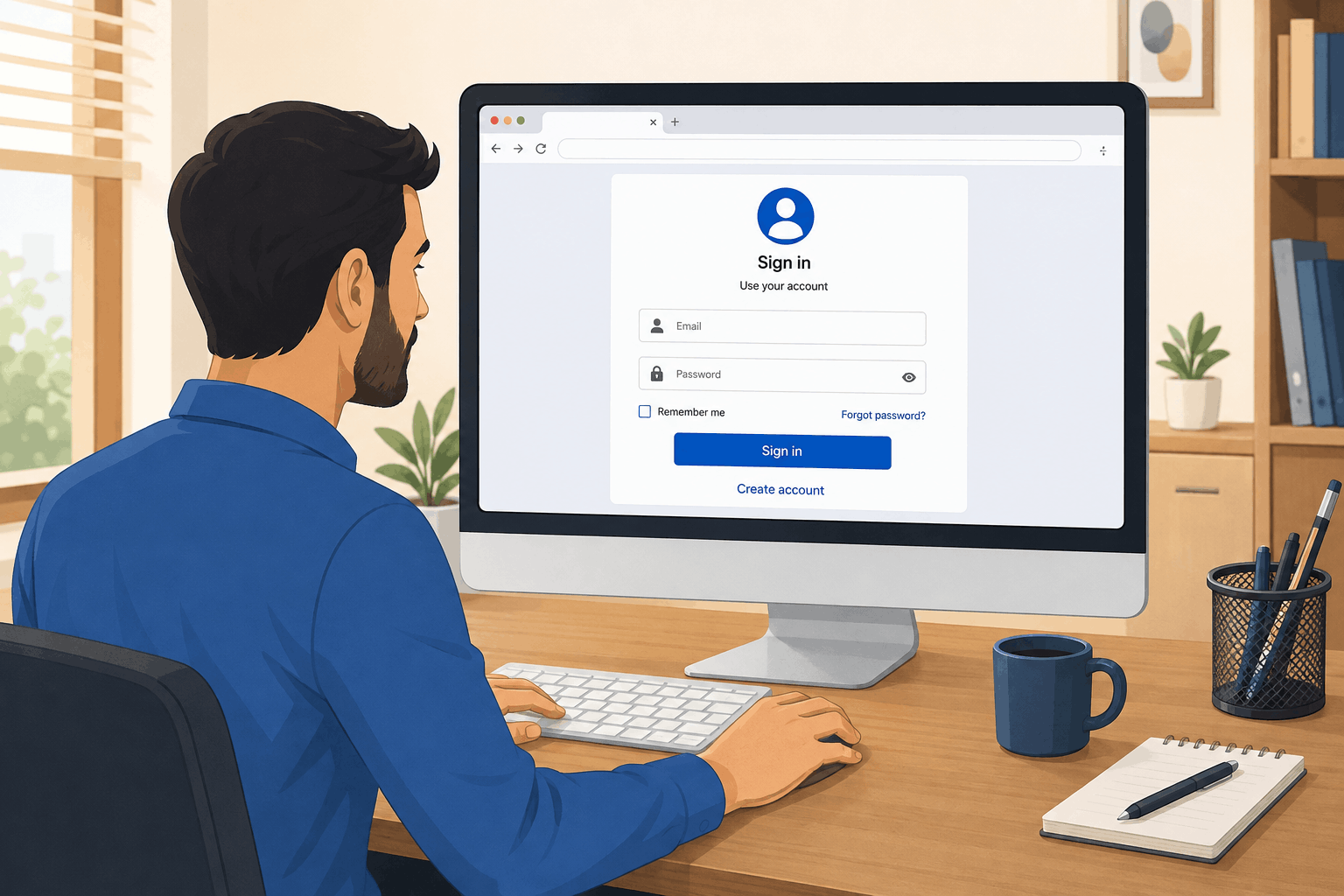
What to do: Go to a web browser and sign in to the Google (Gmail) account you want to use to manage your business listing.
Why it matters: Google Business Profile is tied to whichever Google account creates and manages it. Whoever controls that account effectively controls the listing — its information, photos, and responses to reviews.
Which account to use: Use an account the business owner controls directly, not a personal account belonging to a single employee. If an employee sets up the profile using their own personal Gmail and later leaves the company, the business can lose access to its own listing. Many businesses create a dedicated business Gmail account specifically for this purpose, or ensure the owner is added as a manager/owner from the start.
Common mistake: Setting up the profile using an agency’s or freelancer’s personal account with no owner access granted to the actual business.
Pro Tip: If you’re working with a marketing agency, ask them to add you as the primary Owner of the profile, even if they manage it day-to-day.
Step 2 — Open Google Business Profile
What to do: Navigate to the official Google Business Profile website (search “Google Business Profile” or go directly to the official page) and look for an option to get started or manage your business.
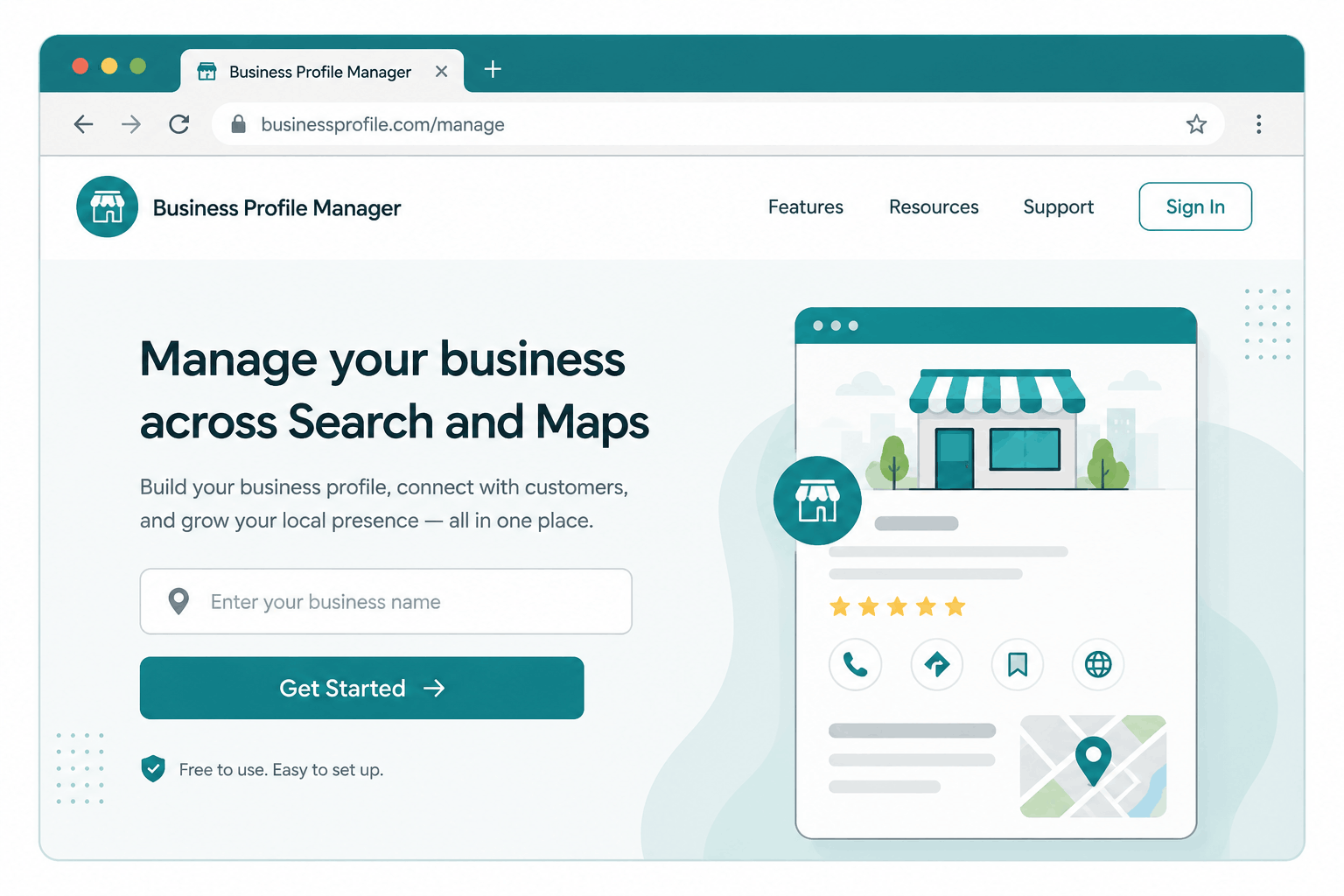
What you’ll see: A landing page inviting you to add or claim your business, typically with a prompt to enter your business name to begin.
Common mistake: Using an unofficial third-party site that claims to “list your business on Google” for a fee. Creating and managing a Business Profile is free directly through Google.
Pro Tip: Bookmark the official Google Business Profile management page once you’re set up — you’ll return to it regularly to update information and respond to reviews.
Step 3 — Enter Your Business Name
What to do: Type in your business’s real, official name exactly as it appears on your signage, invoices, and legal paperwork.
Why it matters: Consistency between your Business Profile name and how your business is known elsewhere (your website, signage, other directories) builds trust with both customers and Google.
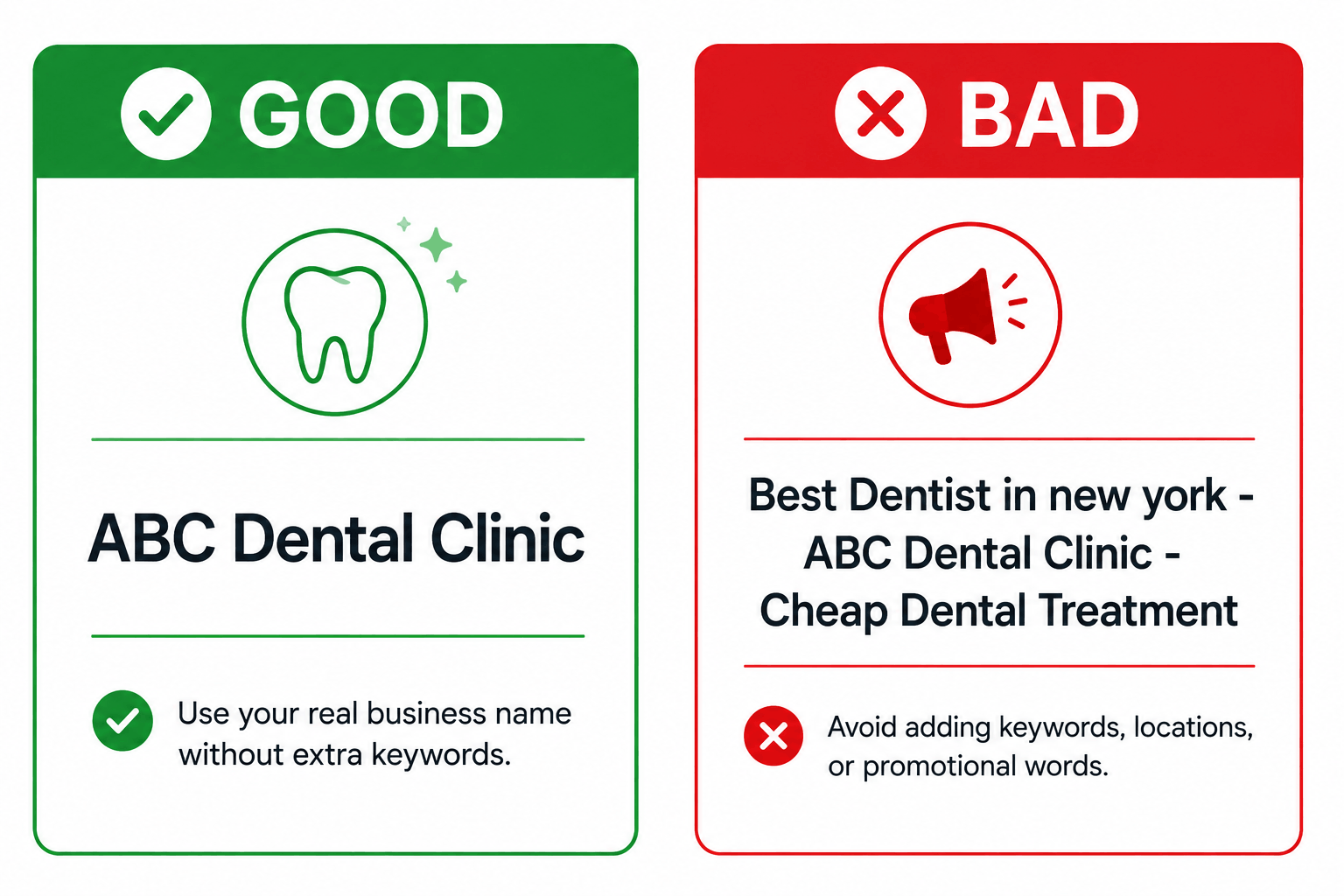
Good vs. bad examples:
| Good | Bad |
|---|---|
| ABC Dental Clinic | Best Dentist in New York – ABC Dental Clinic – Cheap Dental Treatment |
| Riverside Coffee House | Riverside Coffee House ☕ #1 Coffee Shop Near You |
Adding keywords, city names, or promotional phrases to your business name field — when they aren’t actually part of your registered business name — goes against Google’s guidelines and can lead to your listing being suppressed or removed.
Common mistake: Stuffing the name field with keywords like “near me,” service types, or city names to try to rank better.
Step 4 — Choose the Correct Business Category
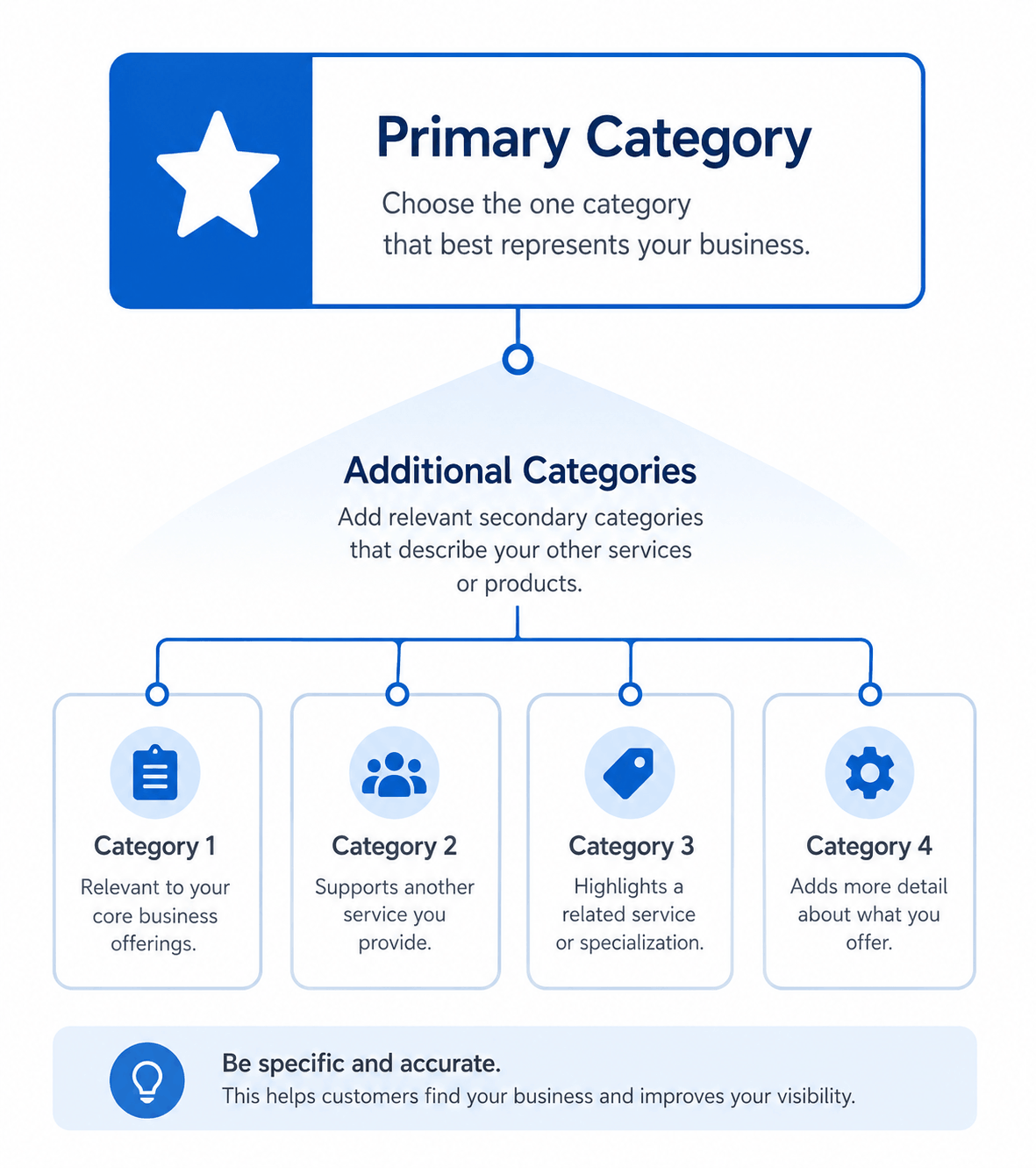
What to do: Select a primary category that most accurately describes what your business fundamentally is, then add relevant additional categories if applicable.
Why the primary category matters: It’s one of the strongest signals Google uses to understand what your business does and which searches it should appear for. An inaccurate primary category can mean you show up for the wrong searches — or fail to show up for the right ones.
Examples:
| Business Type | Suggested Primary Category |
|---|---|
| Restaurant | “Restaurant” or a more specific type, e.g. “Italian Restaurant” |
| Dental Clinic | “Dentist” or “Dental Clinic” |
| Digital Marketing Agency | “Marketing Agency” |
| Jewelry Store | “Jewelry Store” |
| Plumber | “Plumber” |
Common mistake: Choosing a broader or unrelated category because it appears to have higher search volume. This tends to backfire — Google and customers both expect the category to match what you actually do.
Step 5 — Choose Whether Customers Can Visit Your Location
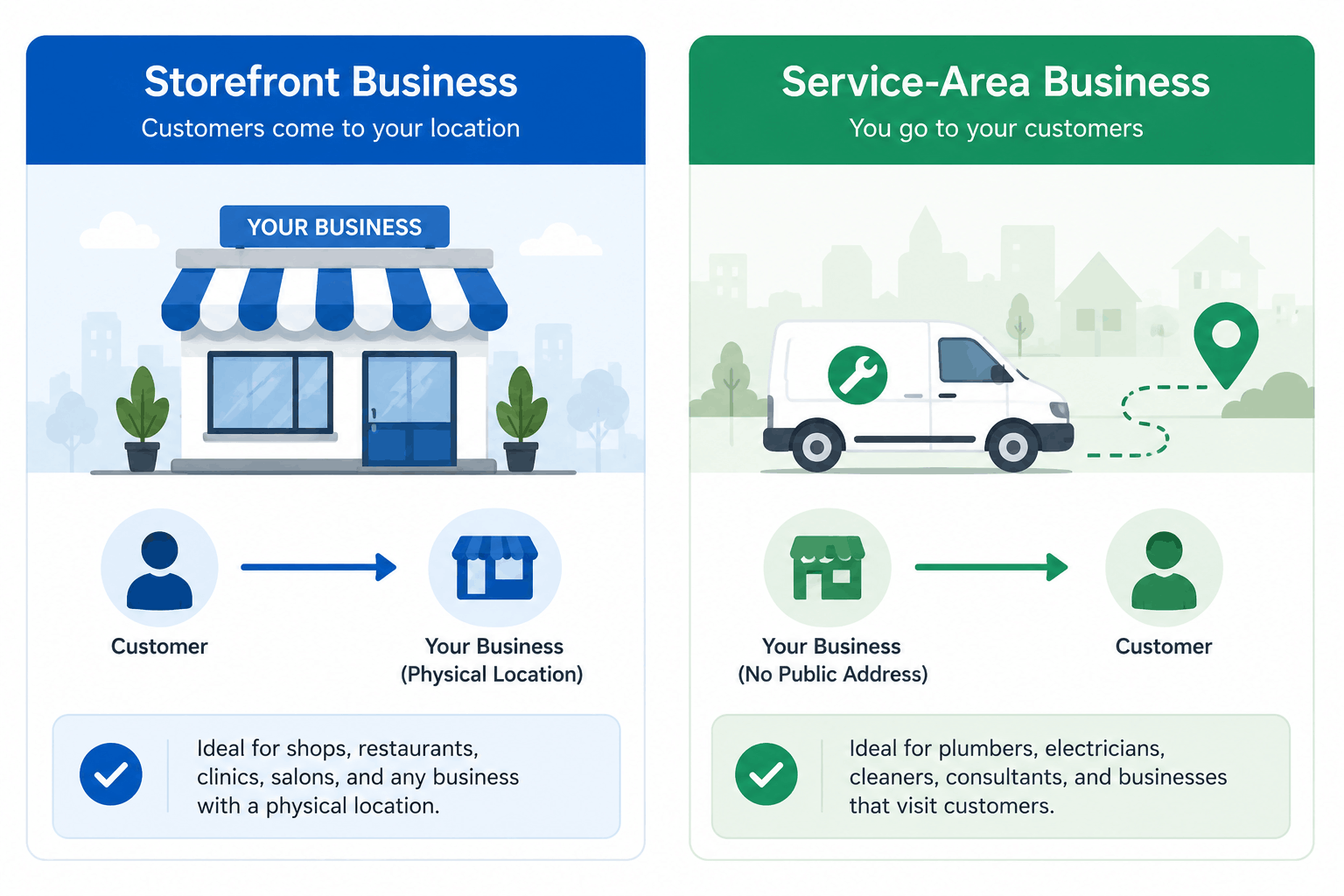
What to do: Indicate whether customers physically come to your business, whether you travel to them, or both.
Options generally include:
- Customers visit your business location (storefront model)
- You serve customers at their location (service-area business)
- A mix of both, if applicable
Why it matters: This choice affects whether your exact address is shown publicly, how your service area is displayed on Maps, and which profile features are available to you.
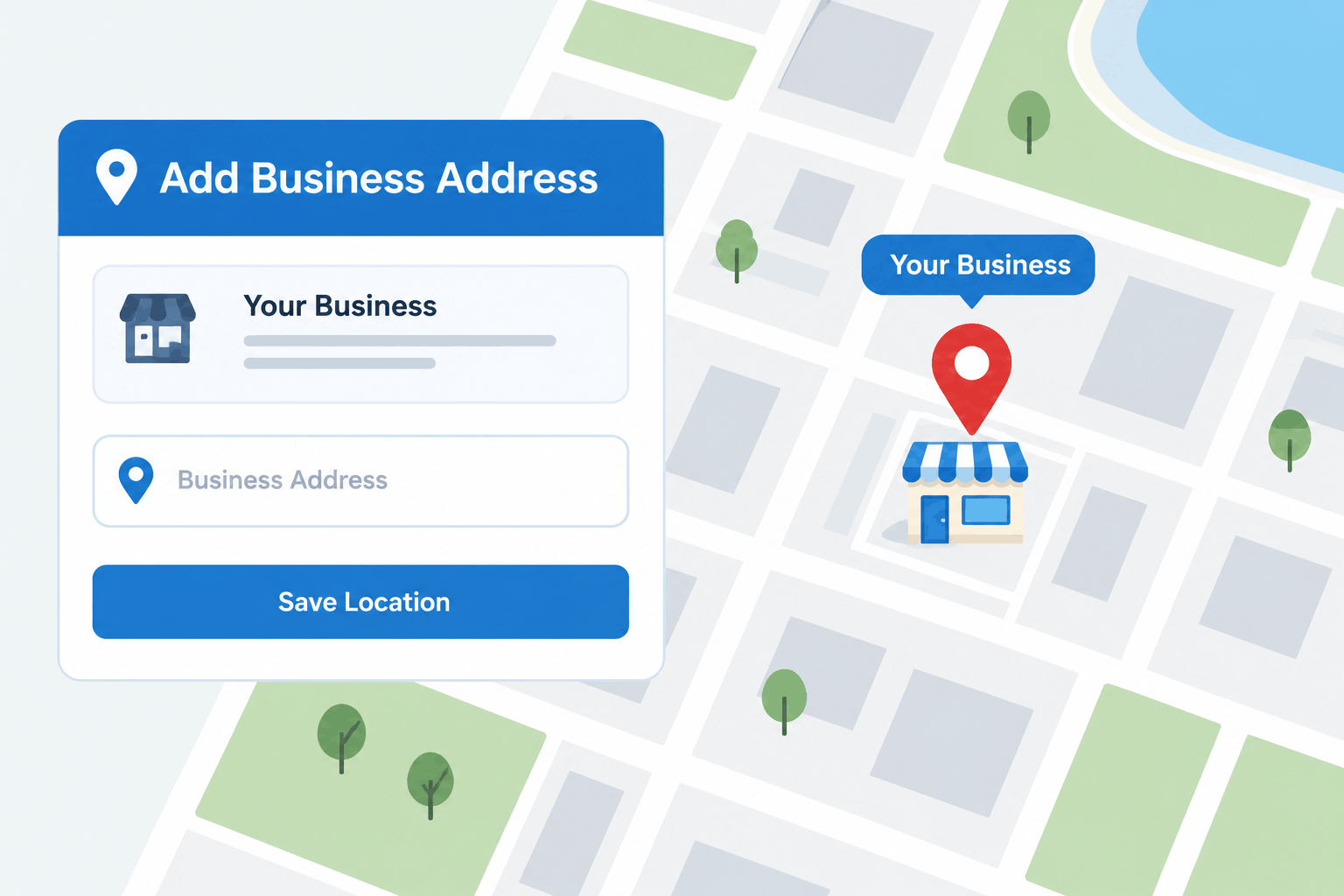
Step 6 — Enter Your Business Address
What to do: If customers visit your location, enter your real, complete business address exactly as it exists in the physical world.
Why accuracy matters: Your address needs to match your actual location for Google’s mapping and verification processes to work correctly, and to avoid confusing or misdirecting customers. Never enter a fake, virtual, or borrowed address — this violates Google’s guidelines and can result in profile suspension.
For service-area businesses: Depending on your setup, your exact address may not be shown publicly, even though Google may still need it internally to verify your business’s location.
Tip: Getting your pin placement right on Google Maps matters just as much as the typed address — if your location marker is off, customers can be sent to the wrong spot even when your written address is correct. Our step-by-step walkthrough on dropping a pin in Google Maps (Android, iPhone, and desktop) covers exactly how to fix or fine-tune this.
Step 7 — Add Your Service Area
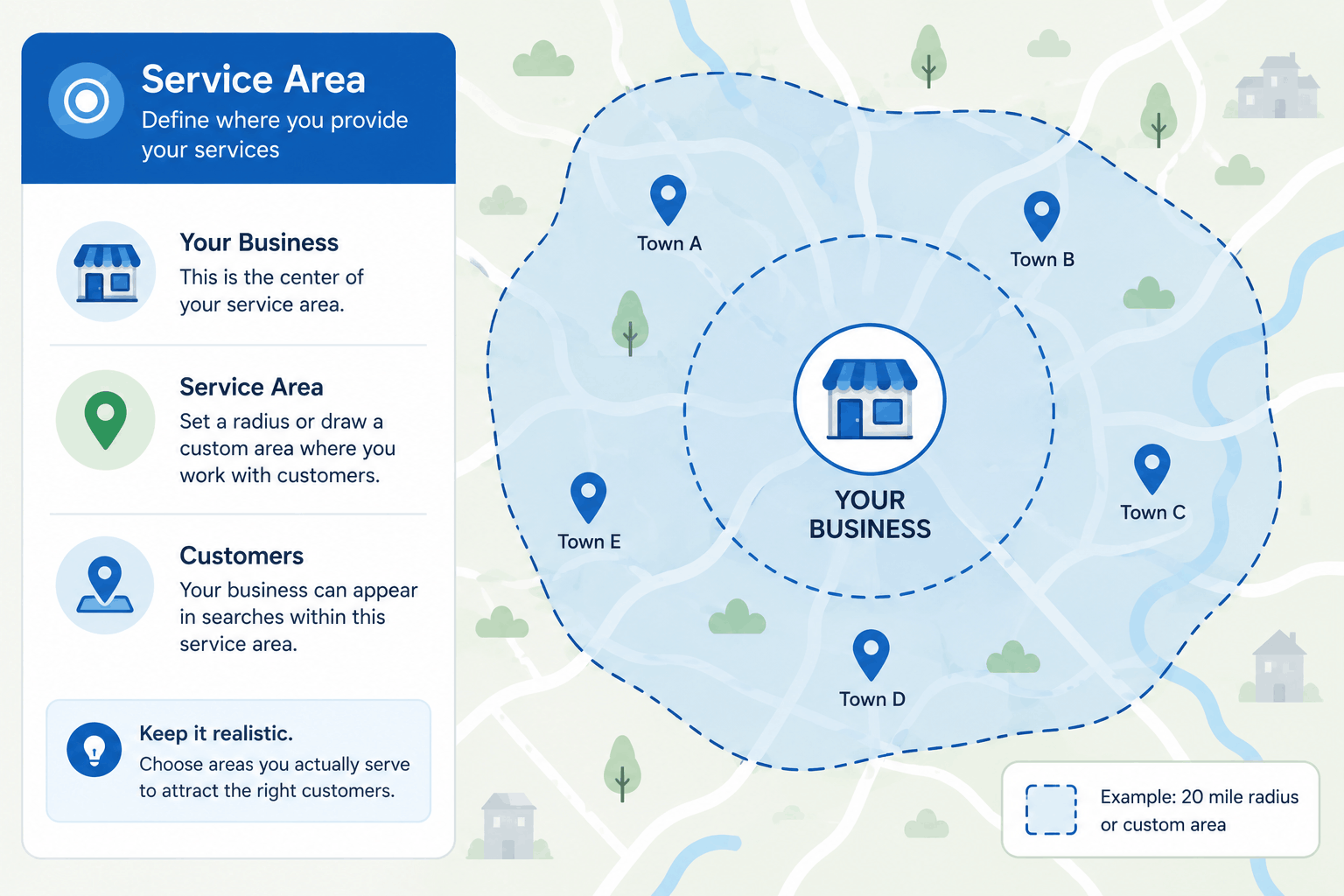
What to do: If you’re a service-area business, define the cities, postal codes, or regions you genuinely serve.
Why it matters: Google uses this information to decide when to show your business to nearby searchers. Listing areas you don’t actually serve creates a poor experience for customers who contact you expecting service you can’t provide.
Example: A mobile pet-grooming business based in one city might realistically serve that city plus two or three neighboring towns — not an entire state. For a closer look at how this plays out for a real service-area trade, see our post on local SEO for electricians.
Common mistake: Selecting an unrealistically large service area to try to appear in more searches.
Step 8 — Add Phone Number and Website
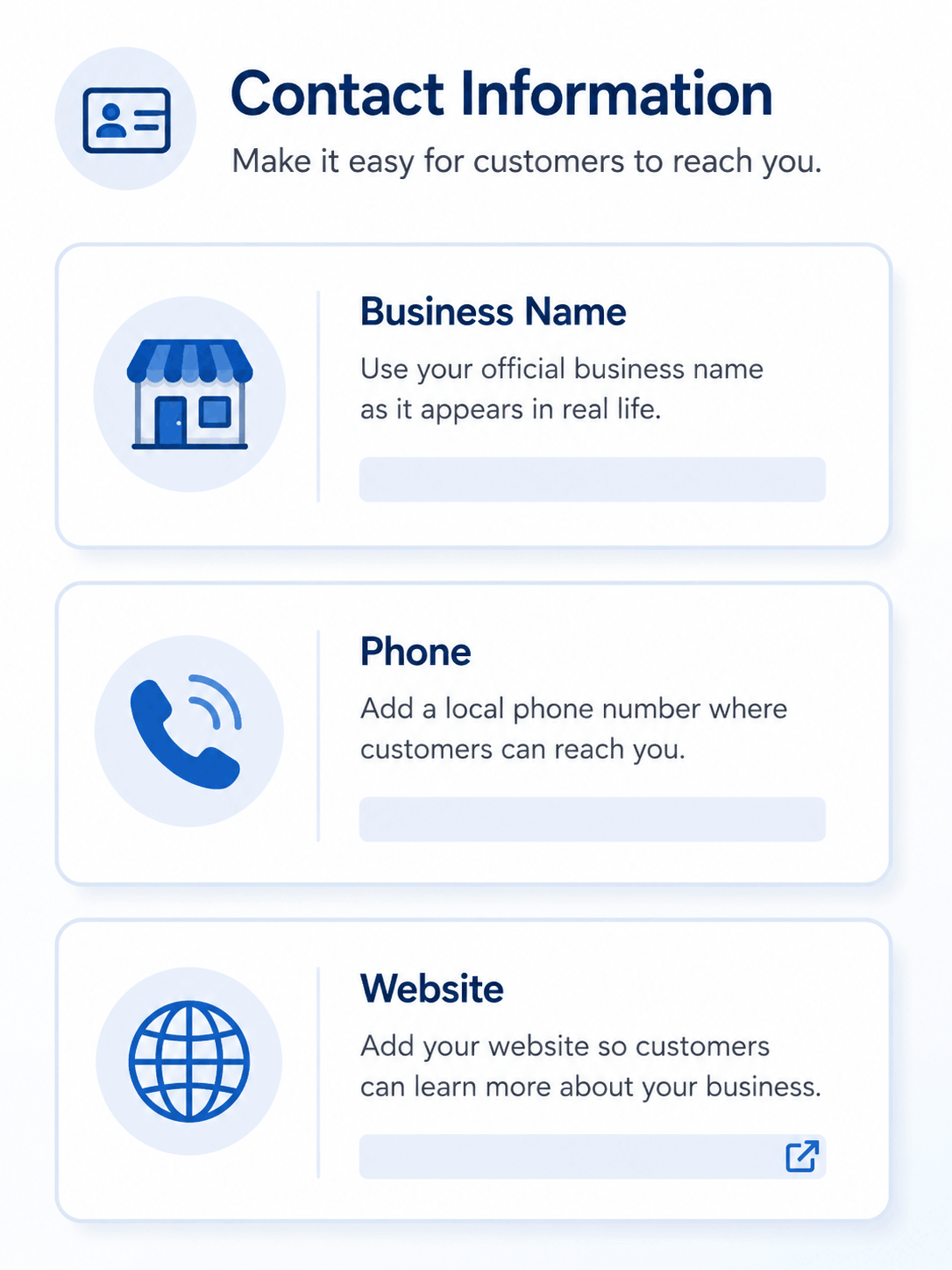
What to do: Enter a phone number customers can actually reach you on, and your website URL if you have one.
Why it matters: Consistency here matters as much as accuracy. If your phone number on your Business Profile doesn’t match the one on your website or other directories, it can create confusion and weaken trust signals.
Step 9 — Add Business Hours
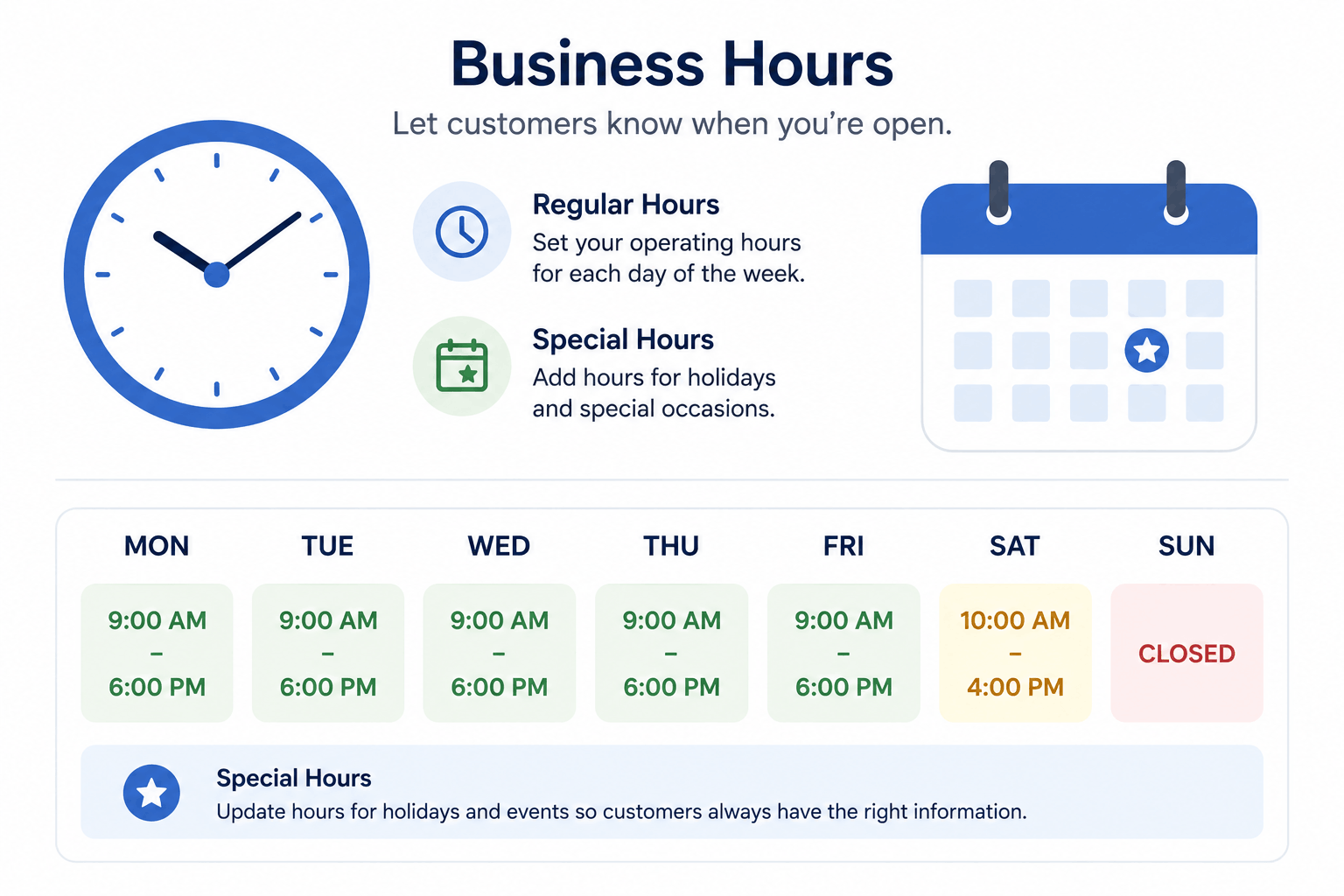
What to do: Enter your regular weekly hours, and update special hours for holidays or temporary closures as needed.
Why it matters: Incorrect hours are one of the most common reasons customers show up to a closed business — a frustrating experience that can lead directly to lost trust and negative reviews. Keep this section updated whenever your hours change.
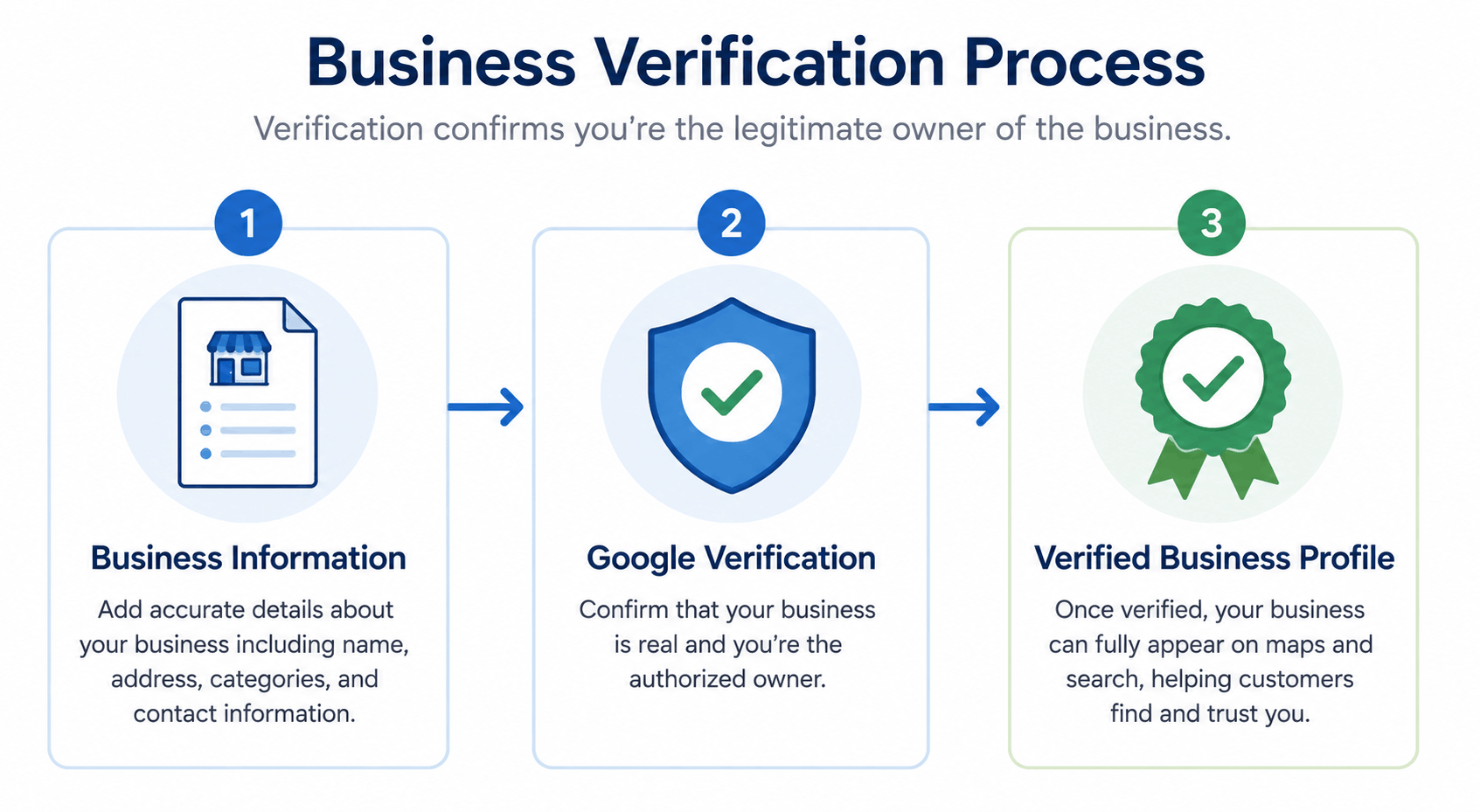
5. Google Business Profile Verification
Once your basic information is entered, Google will typically ask you to verify that you’re the legitimate owner or representative of the business. Verification exists to protect both business owners and customers from fraudulent or duplicate listings.
Key things to understand about verification:
- Verification methods can vary depending on your business type, location, category, and your Google account’s history.
- Google — not the business — decides which verification options are offered to you in any given case.
- Common methods have historically included things like phone, email, postcard, or video verification, but the exact options available to you may differ and can change over time.
- Requirements are not fixed forever; Google periodically updates its verification process.
Important: Do not assume every business gets the same verification experience. Always follow the specific instructions shown inside your own Google Business Profile account rather than relying on generic advice (including this guide) for exact steps.
If verification fails or doesn’t go as expected: Review the guidance Google provides directly in your account, double-check that all your business information is accurate and consistent, and try the verification process again if Google allows it. If you continue to have trouble, Google provides official support channels for verification issues — use those rather than third-party workarounds.
6. What to Do If Google Asks for Video Verification
Some businesses may be asked to complete verification using a short video recorded at the business location, in addition to or instead of other methods. This is generally intended to help Google confirm that a business is genuinely operating from the location and in the way it claims to.
Depending on Google’s specific instructions, you may be asked to show things like:
- The exterior of your business, including visible signage
- The interior of your workspace
- Equipment, tools, or inventory relevant to your business
- Products you sell or work you perform
- General evidence that the business is actively operating
What to actually do: Follow the exact steps and requirements shown to you inside your Google Business Profile account at the time you’re asked to verify. Instructions can be specific to your situation, so don’t rely on generic checklists (including this one) as a substitute for what Google shows you directly.
Avoid this: Do not attempt to stage a fake location, borrow someone else’s premises, or otherwise misrepresent your business during verification. This violates Google’s policies and can result in permanent suspension of your profile.

7. Complete Your Business Profile After Verification
Once verified, focus on filling out every remaining section of your profile:
- Business description — a clear summary of what you do
- Services — a structured list of what you offer
- Products — relevant for retail and product-based businesses
- Photos and logo — visual representation of your business
- Cover image — the main image customers see first
- Attributes — details like accessibility features, payment options, or amenities
- Hours — kept current
- Contact information — phone, website, and messaging where available
- Booking options — for businesses that support online appointments, where applicable
Each of these sections gives Google — and your customers — a fuller, more trustworthy picture of your business. Profiles with more complete information tend to give customers a better experience and reduce the number of basic questions (“Are you open Sundays?”) they’d otherwise have to ask directly.
8. How to Write a Good Business Description
Your business description is a short block of text explaining who you are and what you do. Keep it clear and factual rather than promotional.
A simple formula:
[Business Name] provides [main service/product] for [target customers] in [location/service area]. We specialize in [services/products]. Our goal is to [value proposition].
Example:
ABC Dental Clinic provides general and cosmetic dental care for families in the Malviya Nagar area of Jaipur. We specialize in routine checkups, teeth whitening, and pediatric dentistry. Our goal is to make dental visits comfortable and stress-free for patients of all ages.
What to avoid:
- Repeating your business name and keywords excessively
- Making claims you can’t support (“#1 in the city”)
- Including promotional language, discounts, or offers (these belong elsewhere)
- Copying your description word-for-word from your website’s homepage without adapting it
9. How to Add Services
What to do: List the specific services you offer, with short descriptions and pricing where appropriate.
Digital marketing agency example:
- SEO Audit — “A full review of your website’s search performance and technical health.”
- Social Media Management — “Ongoing content planning and posting across your business’s social channels.”
Local salon example:
- Haircut & Style — “Consultation, wash, cut, and style for all hair types.”
- Hair Coloring — “Full or partial color, including balayage and root touch-ups.”
Why it matters: A clear services list helps customers understand exactly what you offer before they contact you, which reduces mismatched expectations and unnecessary back-and-forth.
10. How to Add Products
Products are especially useful for retail and product-based businesses — jewelry stores, clothing boutiques, electronics shops, and food businesses can all showcase individual items directly on their profile.
Examples:
- Jewelry: individual pieces or collections with photos and price ranges
- Clothing: seasonal collections or bestsellers
- Electronics: key product categories you stock
- Food businesses: signature dishes or menu highlights
Why accuracy matters: Outdated or incorrect product information (wrong prices, discontinued items still listed) creates friction when customers arrive expecting something that isn’t actually available.
11. How to Add Photos and Videos
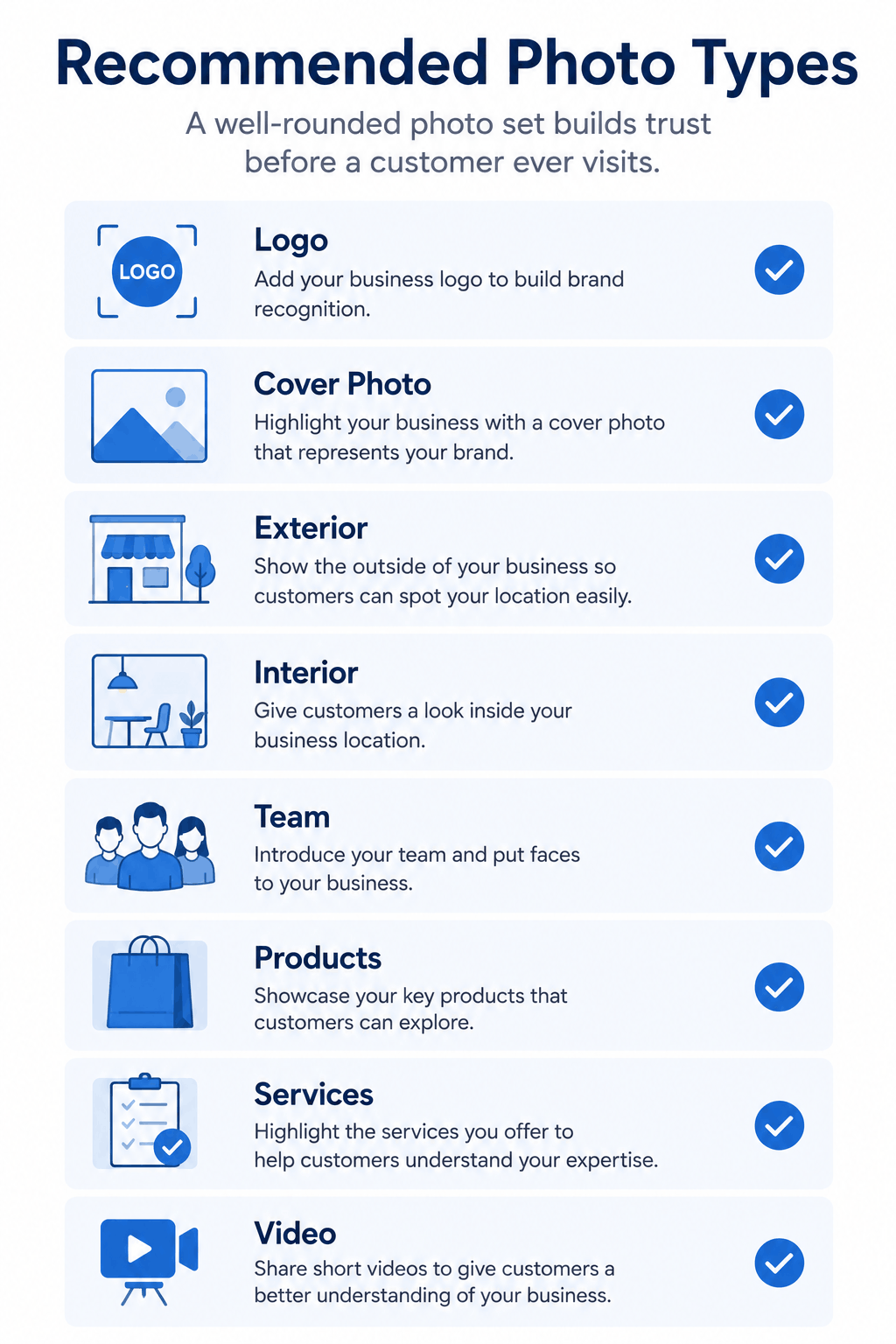
Photos are one of the highest-impact sections of your profile — they’re often what a customer looks at first.
Recommended photo types:
- Logo
- Cover photo (the main image shown at the top of your profile)
- Exterior shots (so customers can recognize your location)
- Interior shots
- Team photos
- Product photos
- Service or “in progress” work photos
- Short videos showing your business in action
Best practices:
- Use real photos of your actual business — never stock images that misrepresent what customers will see
- Keep image quality high (good lighting, in focus, reasonably high resolution)
- Update photos periodically, especially after renovations or menu/product changes
- Avoid heavily edited or filtered images that don’t reflect reality
12. How to Get Customer Reviews
Reviews are one of the strongest trust signals on your profile, and one of the easiest things to get wrong if you’re not careful about how you collect them.
Ethical ways to build reviews:
- Ask genuine, real customers who’ve actually used your product or service
- Share a direct link to your review page to make it as easy as possible
- Ask at a natural moment — right after a positive interaction, delivery, or completed job
- Make the process quick: a short message with a direct link works better than a vague request
Avoid this:
- Buying reviews or using review-exchange schemes
- Posting fake reviews, including for your own business
- Offering incentives in exchange for reviews where that violates platform rules
- Selectively asking only customers you’re sure will leave a glowing review, where that would violate applicable rules
- Leaving reviews on or manipulating a competitor’s listing
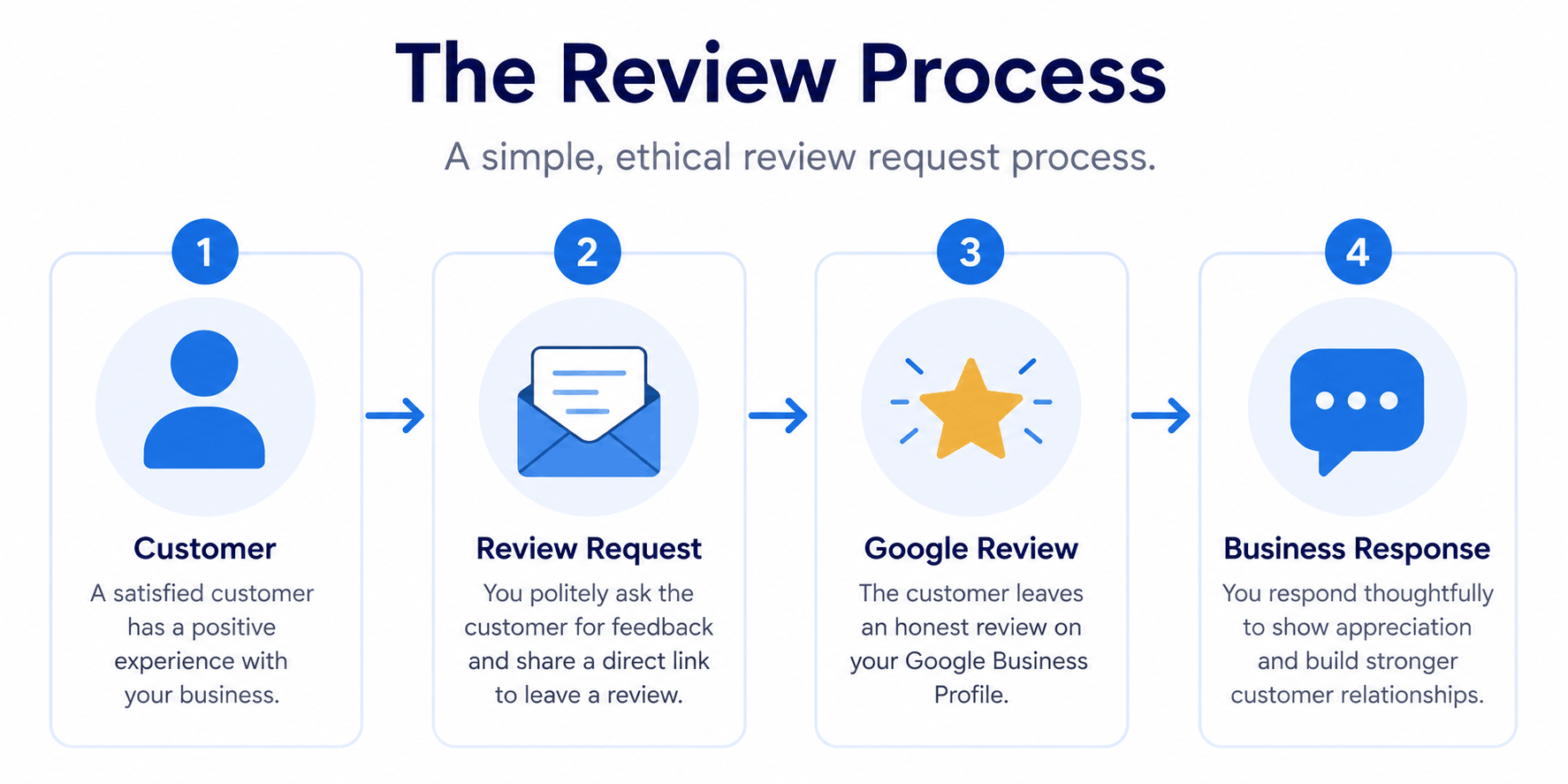
13. How to Respond to Google Reviews
Responding to reviews — positive, neutral, and negative — shows customers (and future customers reading your profile) that you’re engaged and professional.
Positive Review Example:
“Thank you so much for the kind words! We’re glad you had a great experience, and we look forward to seeing you again.”
Neutral Review Example:
“Thanks for sharing your feedback. We’d love to hear more about how we can improve your next visit — feel free to reach out directly.”
Negative Review Example:
“We’re sorry to hear about your experience. This isn’t the standard we aim for, and we’d like to make it right. Please contact us directly so we can address this properly.”
Why it matters: Public arguments in review responses rarely help. A calm, solution-focused reply — even to an unfair review — reflects better on your business than a defensive one, and it’s often what other readers notice most. Consistent, professional review handling is also a core part of online reputation management — if review volume is growing, it’s worth treating this as an ongoing process rather than an occasional task.
14. How to Optimize Your Google Business Profile
Once your profile is live and verified, ongoing optimization is what keeps it performing well. Work through this checklist regularly:
- Business name matches your real-world name exactly
- Primary category is the most accurate available option
- Additional categories are relevant, not just high-volume
- All contact and location information is complete and correct
- Hours are current, including holiday hours
- Business description is clear, factual, and free of keyword stuffing
- Services are listed with accurate descriptions
- Products are current (if applicable)
- Photos are recent, high-quality, and varied
- Reviews are being requested consistently and ethically
- Reviews are being responded to promptly
- Website link is correct and working
- Contact details match across your website and other directories
Important: Optimizing your profile improves the completeness and trustworthiness of your listing — it does not guarantee any specific search ranking or position. Local search ranking depends on many factors, several of which are outside any single business’s direct control.
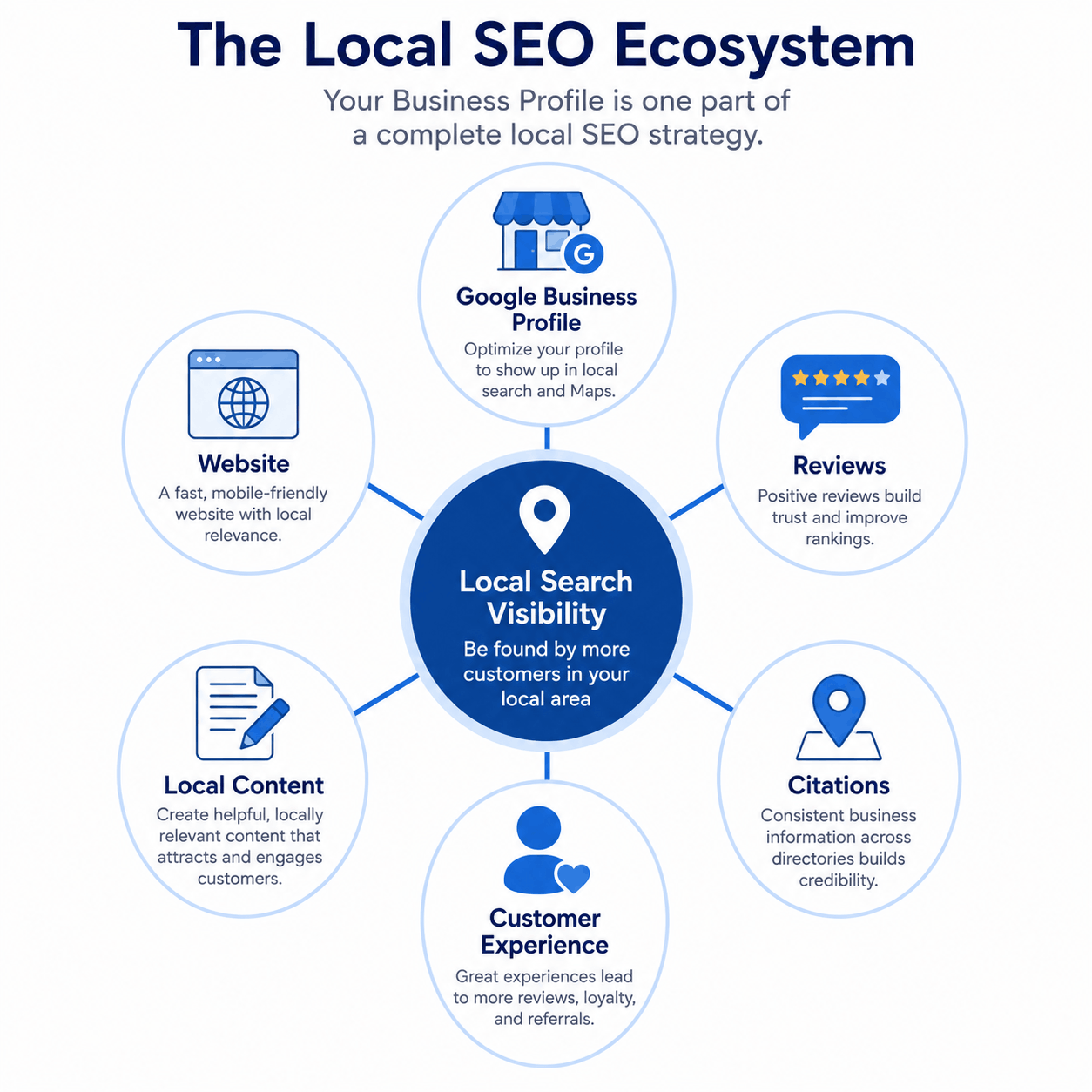
15. Google Business Profile and Local SEO
Your Business Profile is a major piece of local SEO, but it’s not the whole picture. Google has described local ranking as depending on a combination of factors, generally grouped into three broad categories:
- Relevance — how well your profile matches what someone is searching for
- Distance — how close your business is to the searcher or the location they specified
- Prominence — how well-known and well-reviewed your business is, both online and off
Beyond your profile itself, several other elements typically work together to support local visibility:
- Your website’s relevance and technical health
- The volume and quality of your customer reviews
- Accurate, consistent business information across other online directories (often called “citations”)
- Locally relevant content on your website
- Overall customer experience, which feeds back into reviews and reputation
In short: A complete, accurate Google Business Profile is a foundation — but it works best as part of a broader local SEO approach that includes your website and your presence elsewhere online. If you want to see how ranking factors have shifted recently, our post on improving local search rankings goes deeper into this.
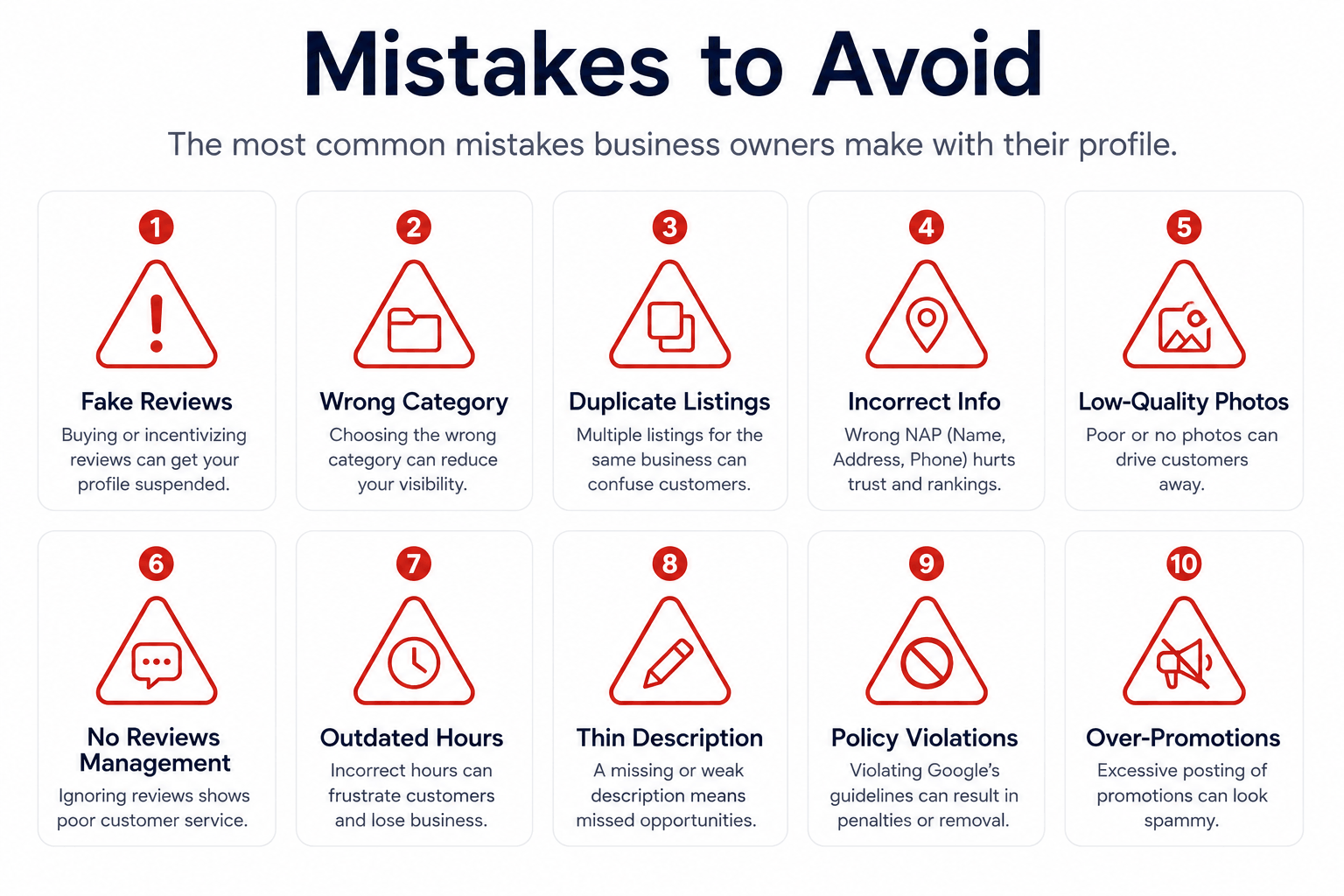
16. Common Google Business Profile Mistakes
| Mistake | How to Avoid It |
|---|---|
| Incorrect or inconsistent business name | Match your real name exactly, everywhere it’s listed |
| Keyword stuffing in the name or description | Keep the name clean; put relevant detail in the description naturally |
| Wrong primary category | Choose the most accurate category, not the highest-volume one |
| Fake or virtual location | Only use your genuine business address |
| Inaccurate business hours | Review and update hours whenever they change |
| Duplicate profiles | Search first to confirm a profile doesn’t already exist |
| Poor-quality photos | Use clear, well-lit, current photos of the real business |
| Ignoring reviews | Respond to reviews regularly, positive and negative |
| Fake reviews | Only collect reviews from real customers, ethically |
| Incomplete information | Fill out every relevant section of the profile |
| Incorrect service area | List only areas you genuinely serve |
| Not updating information over time | Set a reminder to review your profile periodically |
| Giving ownership only to an agency or employee | Ensure the business owner also has Owner-level access |
| Creating multiple profiles unnecessarily | Maintain a single profile per genuine business location |
17. What to Do If Your Business Already Has a Google Business Profile
Before creating a new profile, always check whether one already exists — for example, an old employee, a previous owner, or even a customer may have inadvertently created one.
Steps to check:
- Search your business name directly on Google Search and Google Maps
- Look for an existing listing with your business’s name and location
- If one exists, request access or ownership rather than creating a duplicate
- Once you have access, review and correct the existing information
- Update anything outdated — hours, address, photos, category
Creating a second profile for a business that already has one is against Google’s guidelines and typically causes more harm than good — it splits your reviews, confuses customers, and can trigger suspension of one or both listings.
18. What If Someone Else Owns the Profile?
If your search turns up an existing profile you don’t have access to — perhaps created by a former employee or a previous agency — you’ll generally need to request access through Google’s official process from within your own account.
A few general principles:
- The actual business owner should ultimately hold Owner-level access, even if a manager or agency handles day-to-day updates
- If an agency sets up or manages your profile, confirm they’ve added you as an Owner, not just given you view access
- Remove former employees’ access once they leave the business
- Periodically review who has access to your profile and at what permission level
19. Google Business Profile Suspension
A suspended profile is temporarily or permanently hidden from Google Search and Maps, usually because Google’s systems (or a manual review) flagged something that appears to violate its guidelines.
Common reasons profiles get suspended include:
- Inaccurate or fake business information
- Prohibited content in photos, descriptions, or responses
- Suspicious activity patterns (like sudden bulk changes)
- Duplicate listings for the same business
What to do if it happens:
- Review Google’s official guidance on suspensions and reinstatement
- Carefully check your profile for anything inaccurate or against guidelines and correct it
- Do not create a second profile to try to bypass the suspension — this usually makes things worse
- Submit a reinstatement request through Google’s official process if one is available for your situation
There’s no guarantee a suspended profile will be reinstated, and timelines can vary. Following Google’s guidelines closely from the start is the best way to avoid this altogether.
20. Google Business Profile Troubleshooting FAQ
Is a Gmail account required for Google Business Profile? You need a Google account, which is most commonly a Gmail address, though Google accounts can sometimes be created using other email addresses too.
Is Google Business Profile free? Yes, creating and managing a Business Profile is free.
Can I create a profile from a mobile phone? Yes, you can create and manage a profile from a mobile browser or the Google Maps app.
Can I create a profile from a computer? Yes, this is the most common way business owners set up their profile.
How long does verification take? This varies depending on the verification method and your specific situation — it isn’t the same for every business.
Why is Google asking for video verification? Google may request video verification to confirm your business is genuinely operating at the stated location, depending on your business type and circumstances.
Can I hide my exact address? Depending on your business type (particularly for service-area businesses), your exact address may not be displayed publicly, even if Google has it on file.
Can a service-area business create a profile? Yes, service-area businesses are supported and have a dedicated setup path during profile creation.
Can I have multiple business locations? Yes, but each genuine location generally needs its own profile rather than combining separate locations into one.
Can I add multiple services? Yes, you can list as many relevant services as apply to your business.
Can I add products even if I mainly sell services? Products are optional and are most useful for retail or product-focused businesses, but there’s no rule against adding a small products section if it’s relevant.
Can I change my business category later? Yes, categories can be updated at any time as your business changes.
Can I change my business hours whenever needed? Yes, and you should — keeping hours current is one of the simplest and most important maintenance tasks.
What should I do if I discover my business already has a profile? Request access to the existing profile rather than creating a new one, then update its information.
What should I do if my profile gets suspended? Review Google’s guidelines, correct any issues with your listing, and submit a reinstatement request through Google’s official process if available — avoid creating a replacement profile.
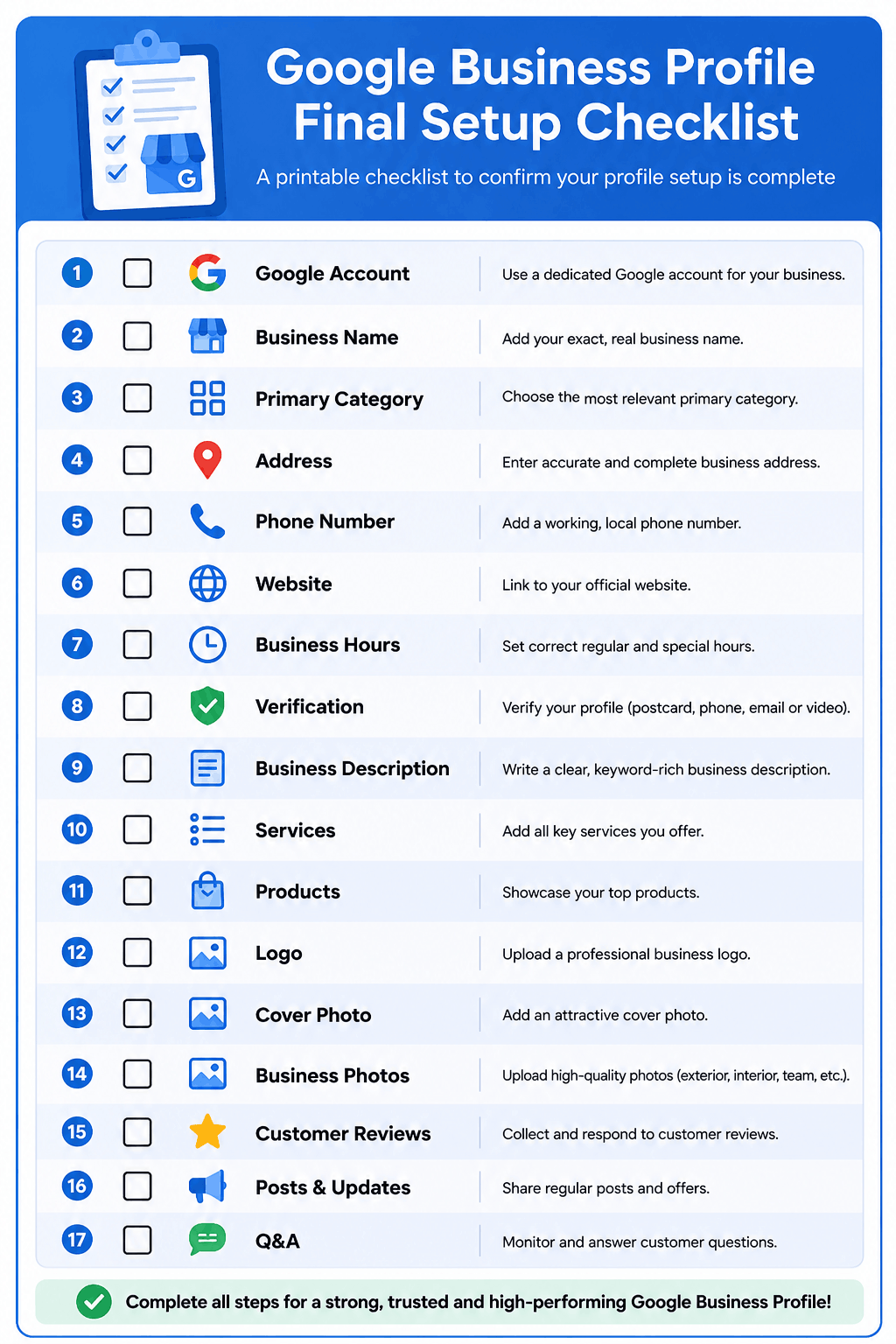
21. Google Business Profile Setup Checklist (Final)
☐ Google account ready ☐ Business name confirmed ☐ Correct primary category selected ☐ Additional categories reviewed ☐ Address or service area confirmed ☐ Phone number added ☐ Website added ☐ Business hours added ☐ Verification completed ☐ Business description added ☐ Services added ☐ Products added, where applicable ☐ Logo uploaded ☐ Cover photo uploaded ☐ Business photos uploaded ☐ Review request strategy prepared ☐ All profile information double-checked for accuracy
22. Final Thoughts
Setting up your Google Business Profile correctly is the foundation — but it isn’t the finish line. The businesses that get the most value from their profile are the ones that keep it accurate over time, add genuine photos and reviews as they come in, respond to customers consistently, and treat the profile as a living part of their online presence rather than a one-time setup task.
None of this guarantees a specific ranking or a fixed number of leads — local search depends on many factors, and results vary by business, location, and competition. What a well-maintained profile does reliably deliver is a clearer, more trustworthy first impression for anyone discovering your business through Google.
If you’d like help setting up or optimizing your Google Business Profile as part of a broader local SEO strategy, our team is happy to help you get it right from the start — or book a free consultation to talk through your specific situation.